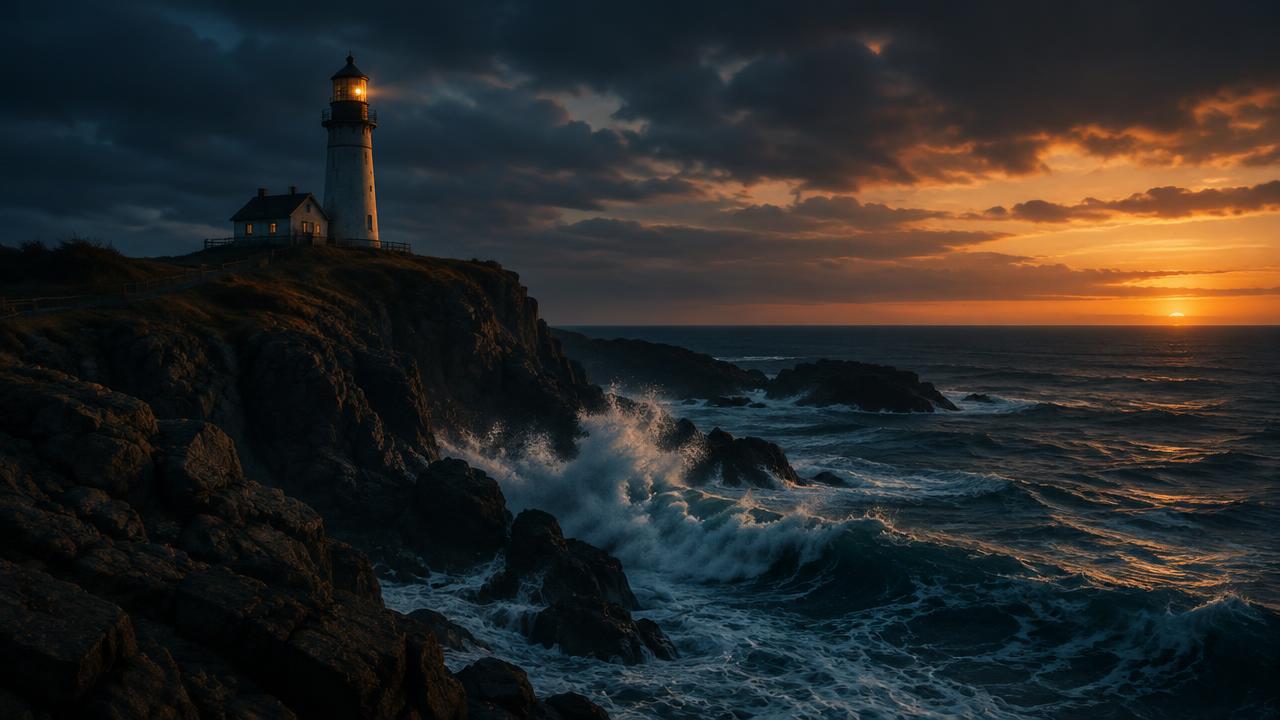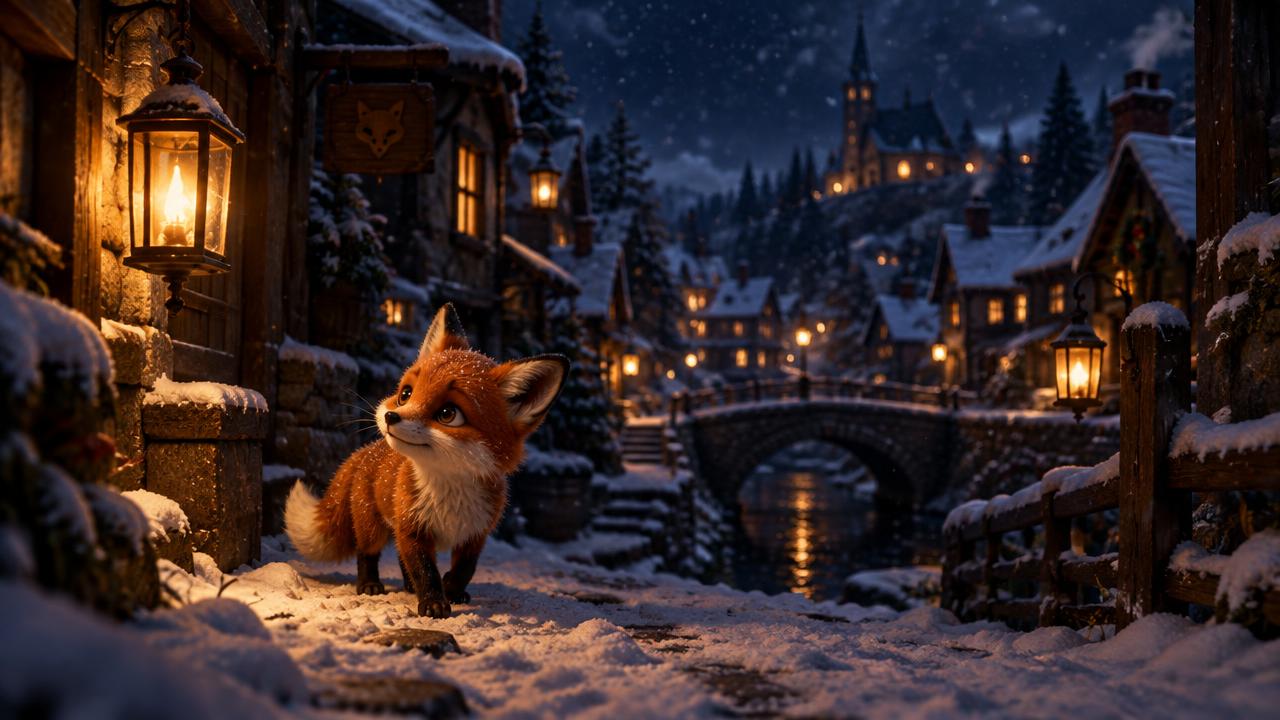
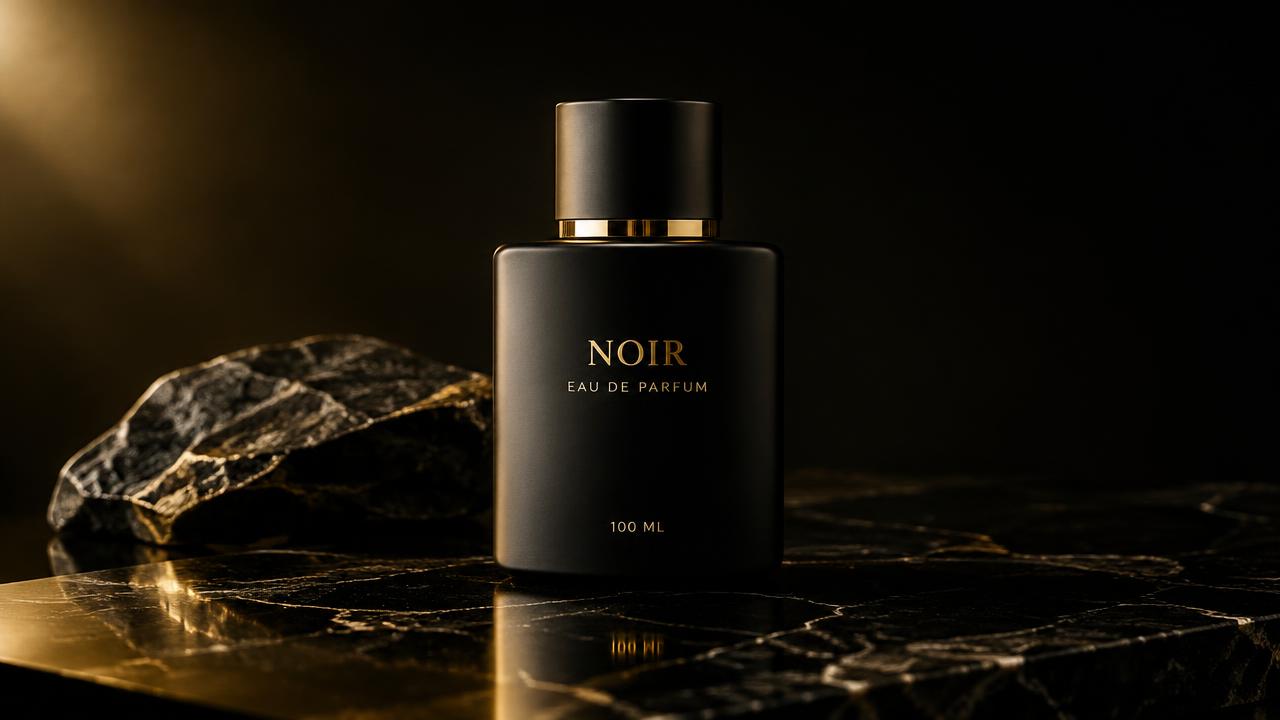
A good source photo solves half the creative brief. It already supplies the subject, composition and light. Your prompt can focus on what changes over time. That is why image-to-video is often a sensible starting point when you have a product photo or a carefully composed portrait.
Choose the frame you actually want to animate
Use a clear image with a visible subject and enough room around it for the intended movement. A tiny product in a busy scene gives the model less useful detail than a clean, well-lit photograph. Heavy blur, cropped hands and unreadable labels can become more obvious once the image moves.
Decide on the destination format first. If the clip is for a vertical feed, a portrait-oriented source can save awkward cropping later. Do not assume a wide photograph will retain every important detail when converted to a vertical frame.
Describe motion rather than redrawing the photo
The image already shows what the subject looks like. Start by describing a small action: steam rises, fabric moves gently, or the camera slowly approaches the product. Asking for a completely different pose, background and lighting turns a simple animation into a much harder transformation.
Keep the product’s shape and label unchanged. The camera slowly moves closer. Soft reflections move across the glass. The product stays on the table, with no rotation or extra objects.
Match the movement to the subject
For a portrait, a subtle expression or small head movement may be more useful than a sudden turn. For a product, keep the shape, logo and label under close inspection. For a landscape, separate the moving elements from the fixed ones.
- Portraits: inspect eyes, teeth, hands and changes in identity.
- Products: inspect packaging, edges, text and reflections.
- Landscapes: inspect the horizon, buildings and ground for unintended movement.
- All subjects: compare the opening and closing frames before downloading.
A reference is guidance, not a guarantee
Image-to-video does not preserve every pixel. Fine lettering can change, objects can bend, and a face can drift during larger movements. If exact branding is essential, treat the generated clip as something to review carefully, not an automatically approved advertisement.
Use only photos you are entitled to upload. Get permission for identifiable people where required, and avoid implying that someone appeared in or endorsed a generated scene when they did not.
A simple first attempt in MeteorVid
Open Create, choose Video and attach your source image in a role supported by the selected model. Describe one movement, select your format and check the credit quote. Unsupported attachments should be resolved before you submit, not worked around with a surprise model change.
Generate one variation, review the result and adjust the motion instruction if necessary. MeteorVid is currently in beta: accounts need approved access to generate. The one-time welcome allowance is granted on approval, and card payments are not active yet.
Sources and further reading
Official product documentation reviewed on 19 October 2026. Features and terms may change.